How to Transfer Everything to Your New Phone (iPhone and Android)
A complete guide to moving your apps, photos, messages, and settings to a new phone without losing anything important.
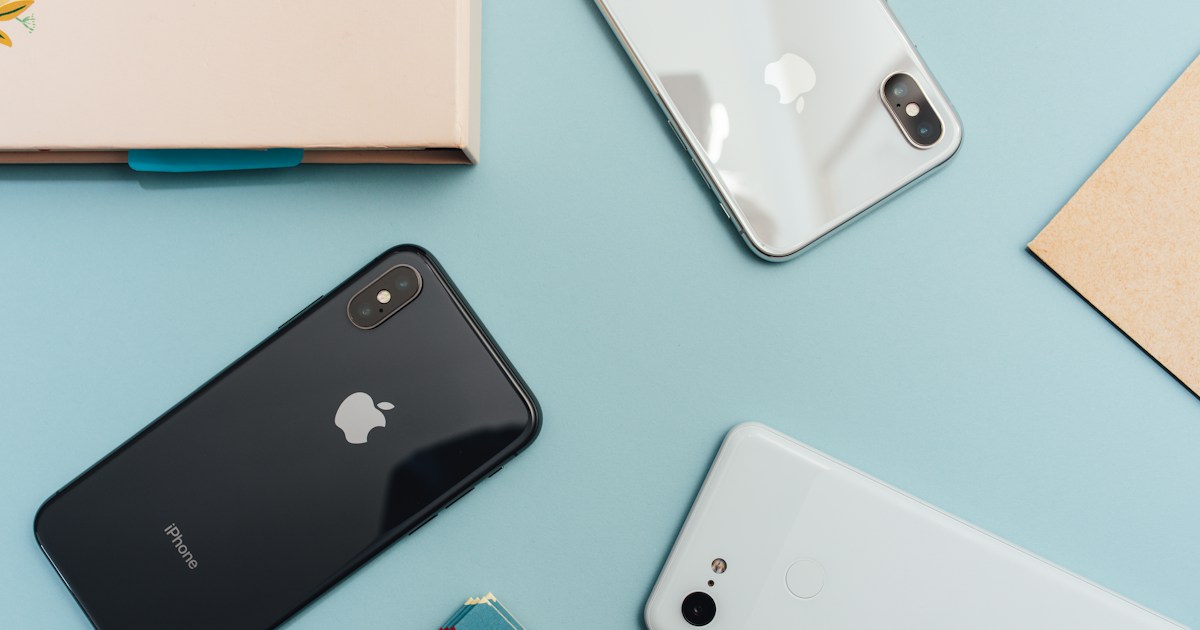
Getting a new phone is exciting until you realize everything important is on your old one. This guide covers every transfer scenario to help you move seamlessly without losing photos, messages, apps, or settings.
Before You Start
Complete these steps before beginning any transfer:
Back Up Your Old Phone
iPhone Backup Options:
- iCloud Backup: Settings > [Your Name] > iCloud > iCloud Backup > Back Up Now
- Computer Backup: Connect to Mac/PC and use Finder or iTunes
Android Backup Options:
- Google Backup: Settings > System > Backup > Back up now
- Samsung Cloud (Samsung phones): Settings > Accounts > Samsung Cloud > Back up data
- Manual backup to computer using USB
Note Your Account Credentials
Write down or save passwords for:
- Your Apple ID or Google account
- Banking apps (may require re-verification)
- Two-factor authentication apps
- Social media accounts
- Email accounts
Check Storage Space
Ensure your new phone has enough storage for all your data. If your old phone uses 100GB, your new phone needs at least that much available.
iPhone to iPhone Transfer
Apple makes this process remarkably smooth with Quick Start.
Using Quick Start (Recommended)
- Turn on your new iPhone and place it near your old iPhone
- A prompt appears on your old iPhone offering to set up the new one
- Use your old iPhone to scan the animation on the new iPhone
- Enter your old iPhone passcode on the new device
- Set up Face ID or Touch ID
- Choose "Transfer from iPhone" when prompted
- Keep both phones near each other until transfer completes
This transfers everything: apps, settings, passwords, health data, and more. The process takes 30 minutes to several hours depending on data size.
Using iCloud Backup
If Quick Start is not available:
- Ensure your old iPhone is backed up to iCloud
- Turn on new iPhone and follow setup until "Apps & Data"
- Select "Restore from iCloud Backup"
- Sign in with your Apple ID
- Choose your most recent backup
- Stay connected to Wi-Fi until restoration completes
Apps download from the App Store, so this takes longer than Quick Start but achieves the same result.
Android to Android Transfer
Google's transfer process has improved significantly.
Using Cable Transfer (Fastest)
- Turn on your new Android phone
- Connect both phones with a USB-C to USB-C cable (or appropriate adapter)
- On your old phone, tap "Copy" when prompted
- Select what to transfer: apps, photos, contacts, messages
- Wait for transfer to complete
This method is fastest and transfers the most data, including some app data that cloud backup might miss.
Using Google Backup
- On your old phone: Settings > System > Backup > Back up now
- Turn on new phone and sign in with same Google account
- Select "Copy apps and data" during setup
- Choose "Can't use old device" if needed
- Select your cloud backup
- Choose what to restore
Google Backup transfers apps, call history, device settings, contacts, and calendar. Photos restore through Google Photos.
Using Samsung Smart Switch
For Samsung phones, Smart Switch offers the most complete transfer:
- Install Smart Switch on both phones (usually pre-installed)
- Open Smart Switch on both devices
- Choose wireless or cable transfer
- Select old phone as sender, new phone as receiver
- Choose what to transfer
- Wait for completion
Smart Switch can transfer app data that standard Android backup cannot, including some messaging apps and game progress.
iPhone to Android Transfer
Switching ecosystems requires more effort but is entirely doable.
What Transfers Easily
- Contacts (via Google account or vCard export)
- Calendar events (via Google Calendar)
- Photos and videos (via Google Photos or cable)
- Email (sign in to your accounts)
- Most apps have Android versions
What Requires Work
- iMessage conversations (export using third-party tools)
- Apple-specific app data (does not transfer)
- Purchased apps (must repurchase on Android)
- Apple Pay cards (re-add to Google Pay)
Step-by-Step Process
-
Move to Google services first: On your iPhone, download Google Photos, Google Drive, and Google Contacts. Sync everything to your Google account.
-
Export iMessage history: Use a tool like iMazing to export messages, or accept that older messages will not transfer.
-
Deregister iMessage: Before switching, go to Settings > Messages > turn off iMessage. This ensures texts from iPhone users reach your new Android. You can also deregister at apple.com/deregister-imessage.
-
Use Google's Switch to Android app: Download it on your iPhone and follow prompts to transfer data directly.
-
Set up your Android: Sign in with Google account during setup. Your contacts, calendar, and photos will sync automatically.
-
Download apps: Reinstall apps from the Play Store. Sign in to each one.
Android to iPhone Transfer
Apple provides the "Move to iOS" app to help switchers.
Using Move to iOS
- Set up your new iPhone until you reach "Apps & Data"
- Select "Move Data from Android"
- On your Android, download "Move to iOS" from Play Store
- Open the app and tap Continue
- Enter the code shown on your iPhone
- Select what to transfer
- Wait for transfer to complete, then finish iPhone setup
What Transfers via Move to iOS
- Contacts
- Message history
- Photos and videos
- Web bookmarks
- Mail accounts
- Calendars
- Free apps (if available on iOS)
Manual Steps Needed
- WhatsApp: Use WhatsApp's built-in chat transfer feature
- Google services: Download Google apps on iPhone
- Purchased apps: Repurchase on App Store
- Music: Transfer via iTunes or subscribe to streaming
Transferring Specific Data
Photos and Videos
Best practices:
- Use cloud services (Google Photos, iCloud) for automatic backup
- Transfer via USB cable for fastest speeds
- Verify all photos transferred before wiping old phone
Google Photos tip: Upload at "Original quality" if you have Google One storage, or "Storage saver" for unlimited free storage at slightly reduced quality.
Messages and Chat History
iMessage: Transfers automatically between iPhones. For Android, use export tools.
WhatsApp: Built-in transfer feature works between same OS. Cross-platform transfer is now supported but requires USB cable.
Telegram: All messages sync automatically when you sign in on new device.
Signal: Messages are device-specific. Export backup on old phone, import on new phone.
App Data and Game Progress
Many apps now support cloud saves:
- Sign in with the same account on new device
- Check app settings for "backup" or "cloud save" options
- Some games use Facebook or Google Play Games for progress
Apps that do not support cloud saves require same-OS transfer tools like Samsung Smart Switch or iPhone Quick Start.
Troubleshooting Common Issues
Transfer Stuck or Failed
- Ensure both phones have sufficient battery (or plug in)
- Restart both devices and try again
- Use cable transfer instead of wireless
- Check available storage on new phone
Missing Contacts
- Verify contacts were saved to Google/iCloud, not phone storage
- Check contact app settings for which accounts display
- Export contacts from old phone as vCard file
Apps Missing After Transfer
- Some apps may not be available in your region
- Paid apps may require repurchase on new platform
- Check download queue in app store
Photos Not Appearing
- Wait for cloud sync to complete (can take hours)
- Check if photos are in a separate "imported" album
- Verify photo backup completed on old phone before transfer
After the Transfer
Verify Everything Transferred
- Scroll through contacts and photos
- Open important apps and check data
- Test sending and receiving messages
- Verify two-factor authentication works
Secure Your Old Phone
- Sign out of all accounts
- Remove from Find My iPhone/Google account
- Factory reset the device
- Remove SIM card if not transferring
Keep Old Phone Temporarily
Wait at least a week before selling or disposing of your old phone. This gives you time to notice anything that did not transfer and retrieve it if needed.
Conclusion
Phone transfers are easier than ever thanks to improved tools from Apple and Google. The key is preparation: back up thoroughly, note your credentials, and verify everything transferred before wiping your old device.
Take your time during the process. A few extra minutes ensuring everything copied correctly saves hours of frustration recovering lost data later.
Tags
Written by
David Kim
A tech writer at InsightWireReads. Our team tests products hands-on and provides honest recommendations based on real-world performance.
Learn more about our teamRelated Articles

How to Extend Your Phone Battery Life: 15 Proven Tips
Tired of your phone dying before the end of the day? These practical tips will help you squeeze more battery life out of any smartphone.

Smartphone Security and Privacy: Essential Settings Everyone Should Enable
Protect your personal data and secure your phone with these critical settings for iPhone and Android that most people overlook.

Best Smartphone Cameras in 2026: Tested and Ranked
We tested the top camera phones in real-world conditions to find which delivers the best photos and videos for different shooting scenarios.